
How to use Magic Background
Magic Background blends your cutout with a photo background using AI. This illustrated guide takes you from upload to download.
You need to sign in and have at least 2 credits before generating. The editor preview and choosing a background do not start a paid generation.
See the before and after
This example uses the same cutout and selected photo. The right image was generated with the Magic Background model in Full AI render mode; AI can change the subject and background details.
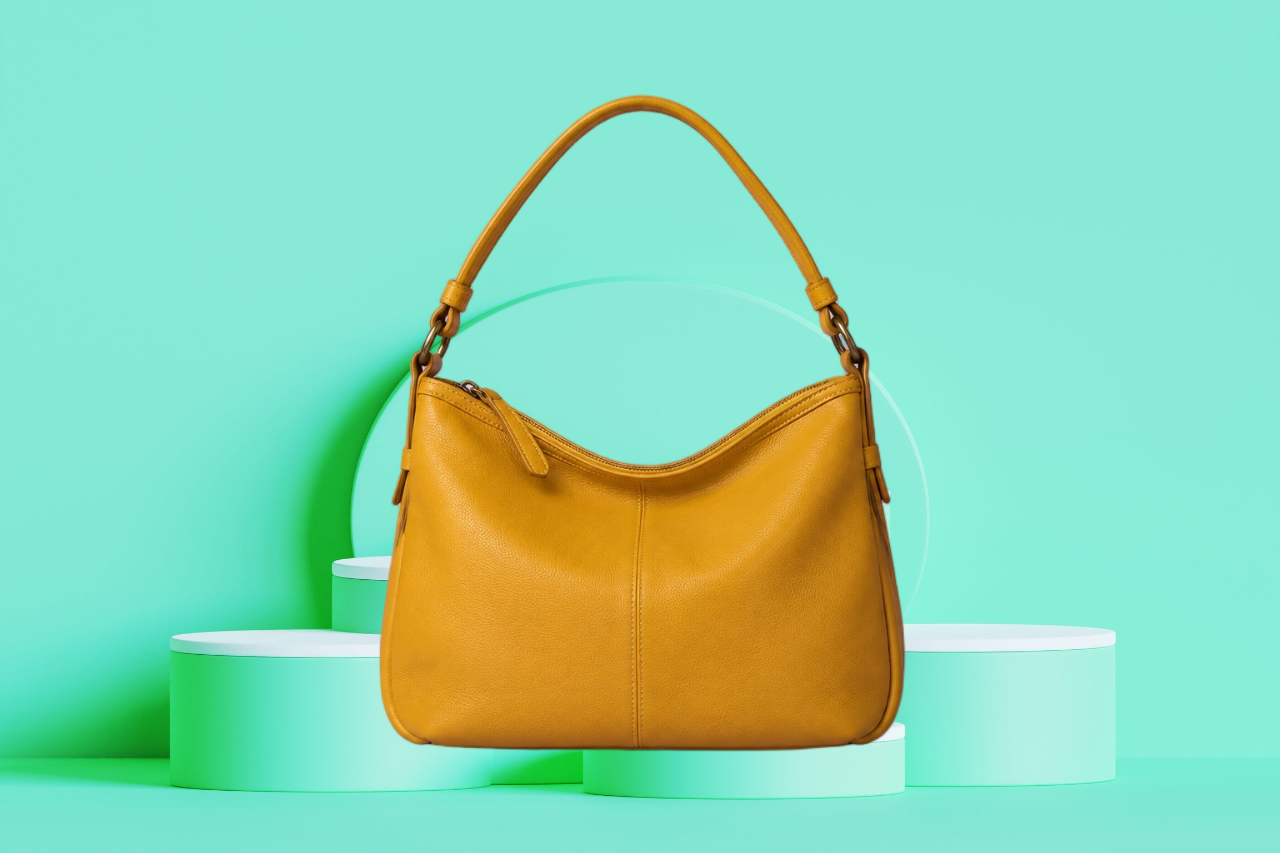
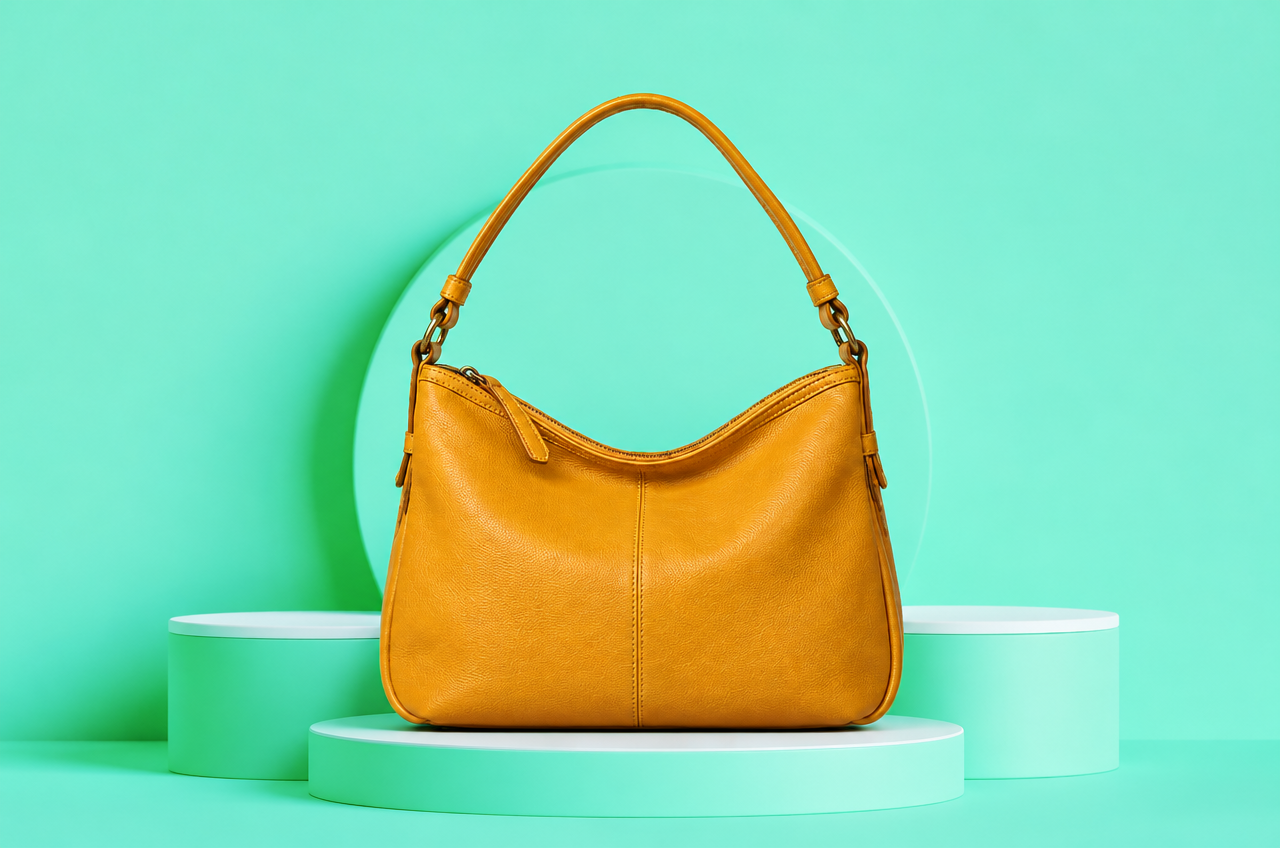
Background photo: IP Creative / Pexels
1. Upload your image
Open Uploads, add a product or portrait photo, and wait for the background to be removed. You can refine the cutout, adjust the subject, and position it before generating.
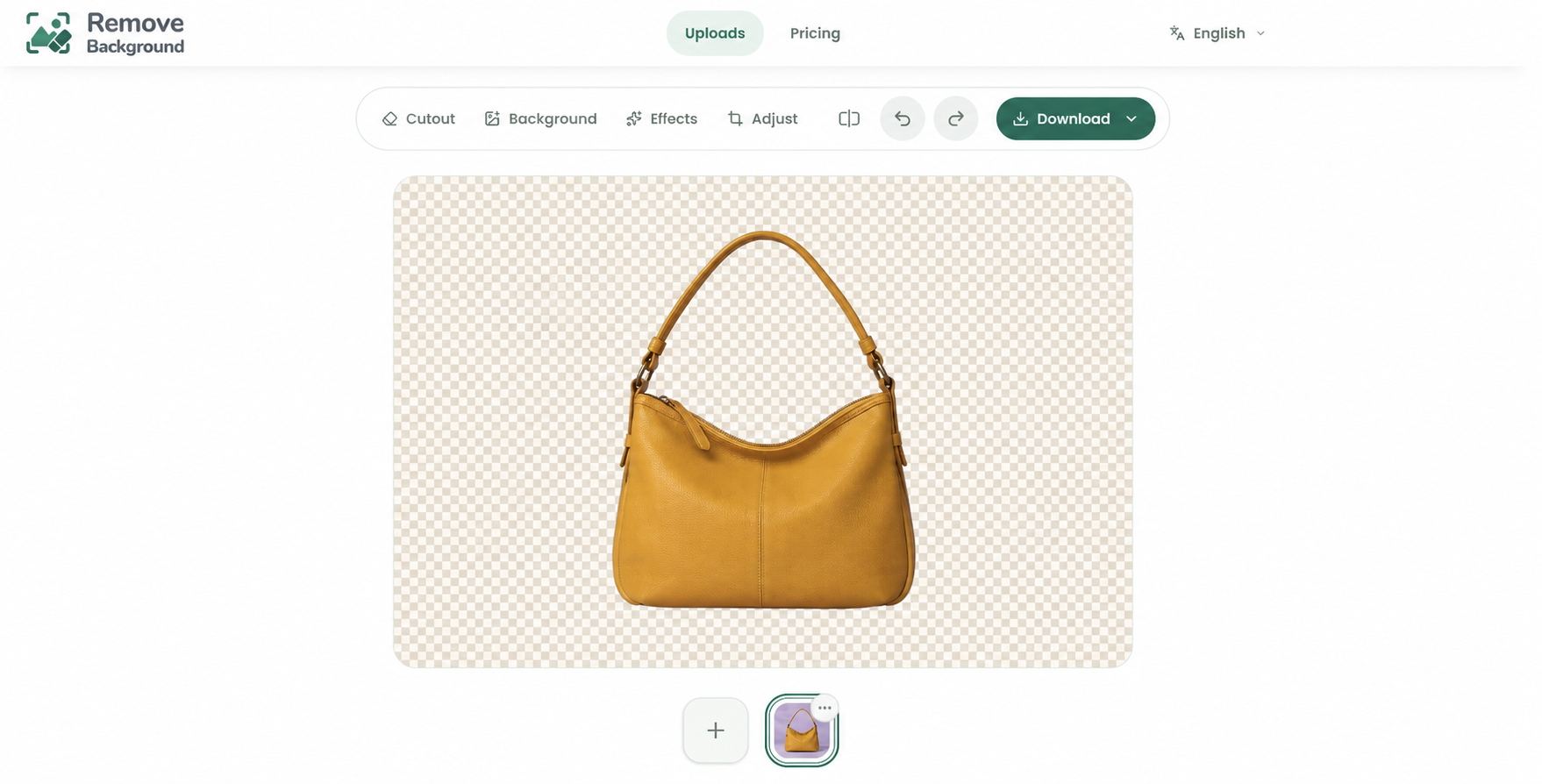
2. Choose a photo background
Open Background, then Photo. Pick a preset photo from the gallery. Magic Background is available for photo backgrounds, including presets, search results, and your own uploads; solid colors and patterns do not show the button.
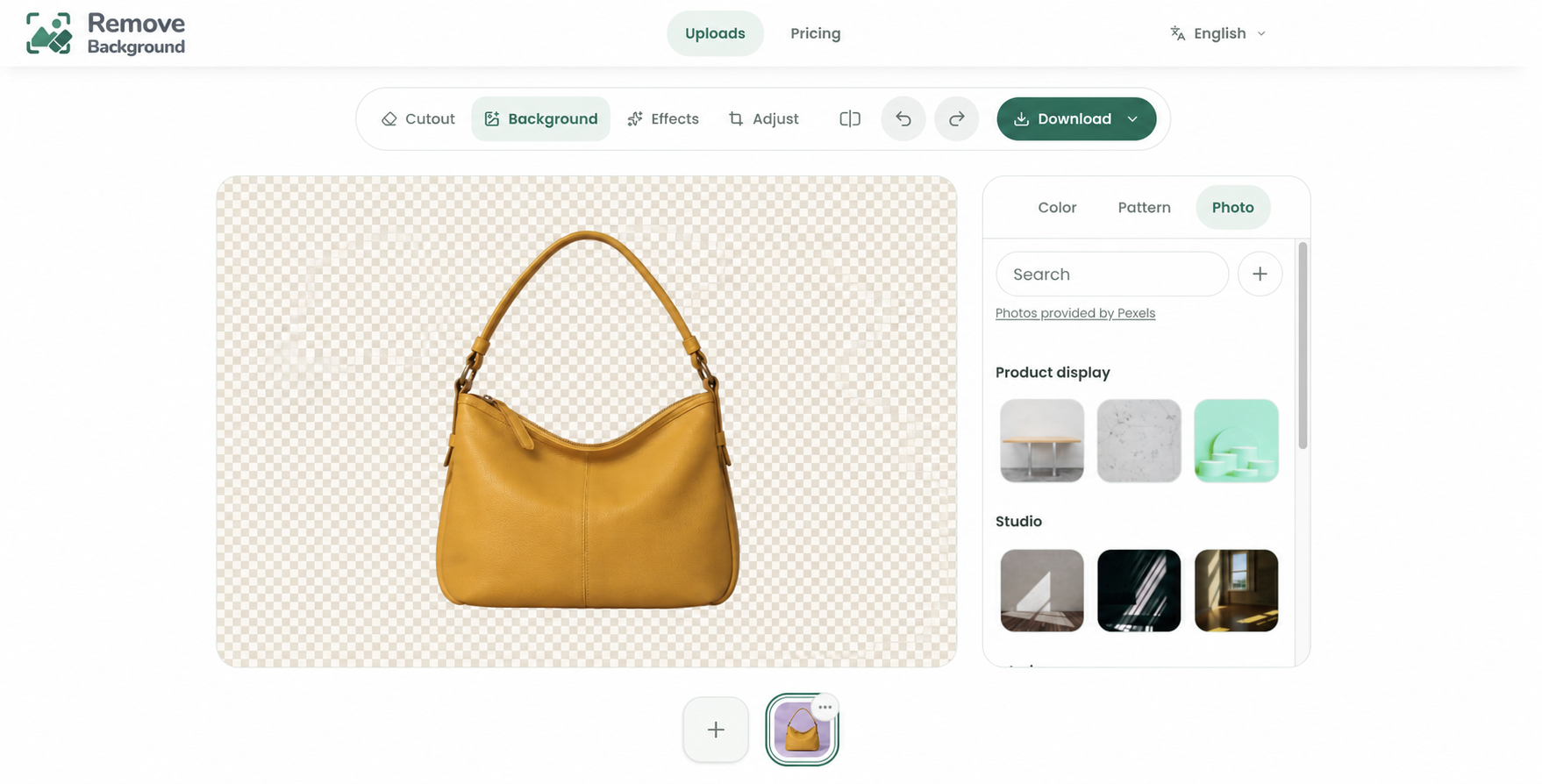
Use Search to find more photos. Try a scene that suits the subject’s perspective and lighting.
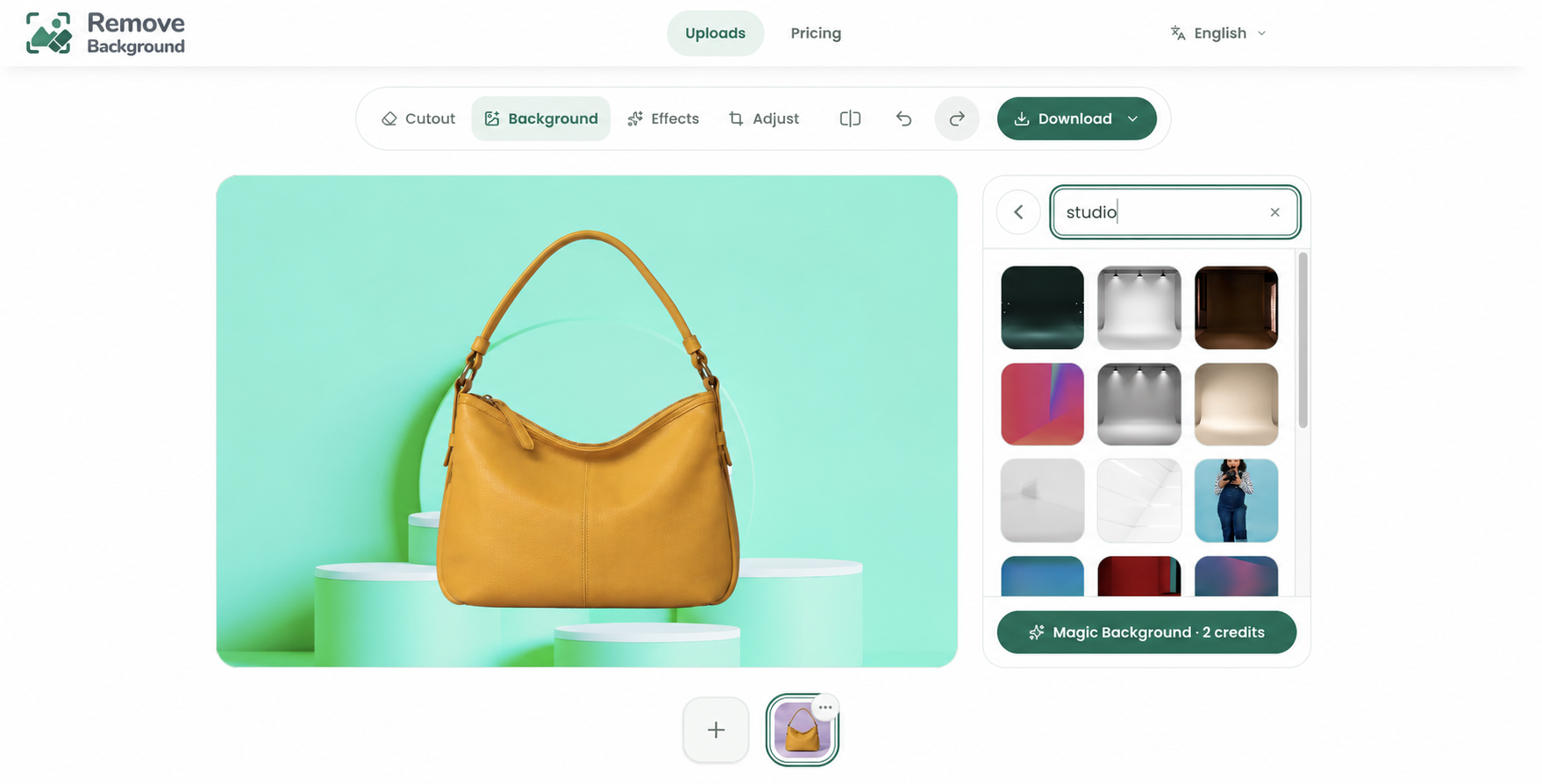
3. Check the composition
Select a photo and inspect the preview. Move or resize the subject and make any final edits now: Magic Background uses the composition at the moment you submit.
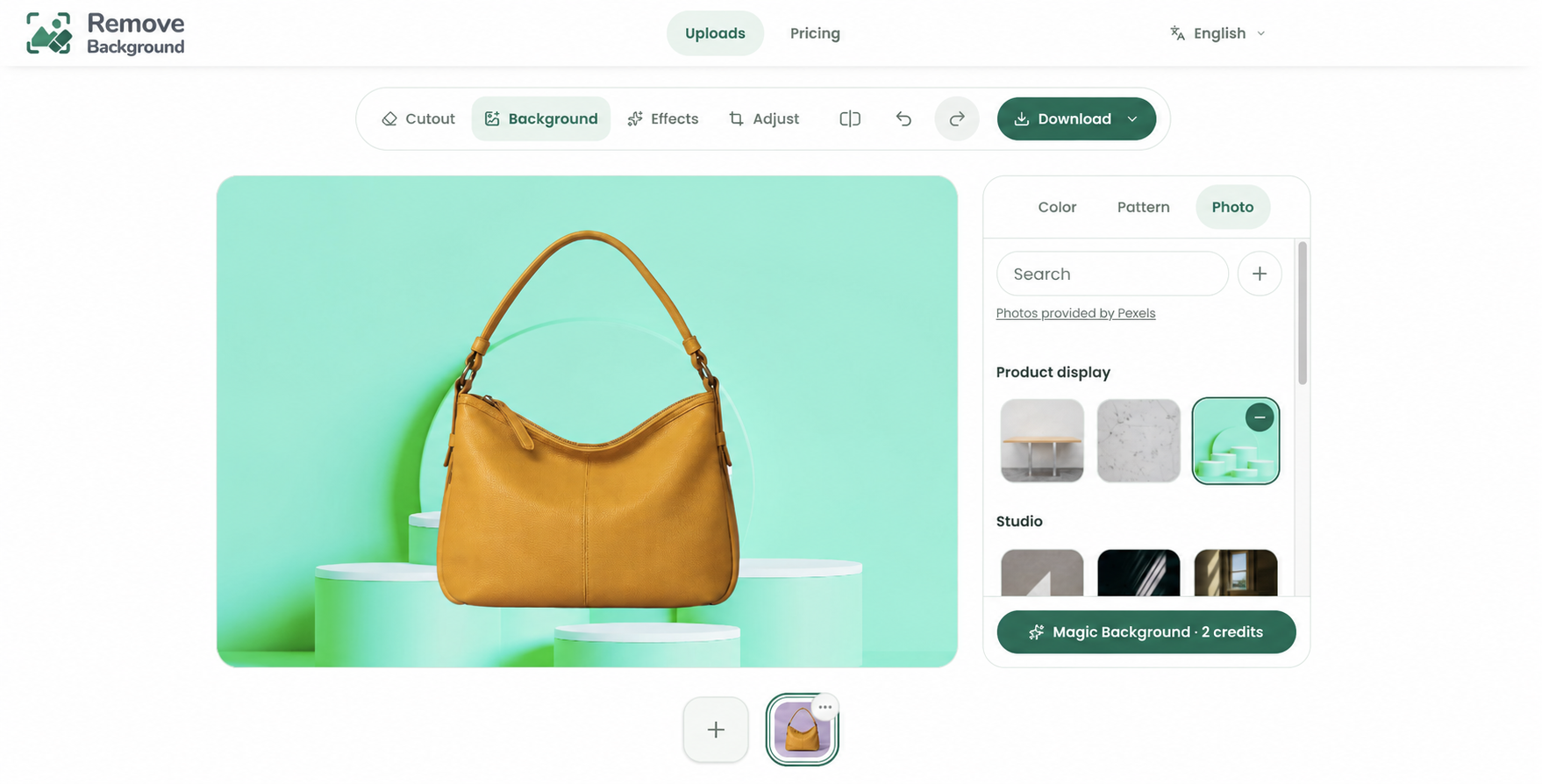
You can also use the plus button beside Search to upload your own photo background.
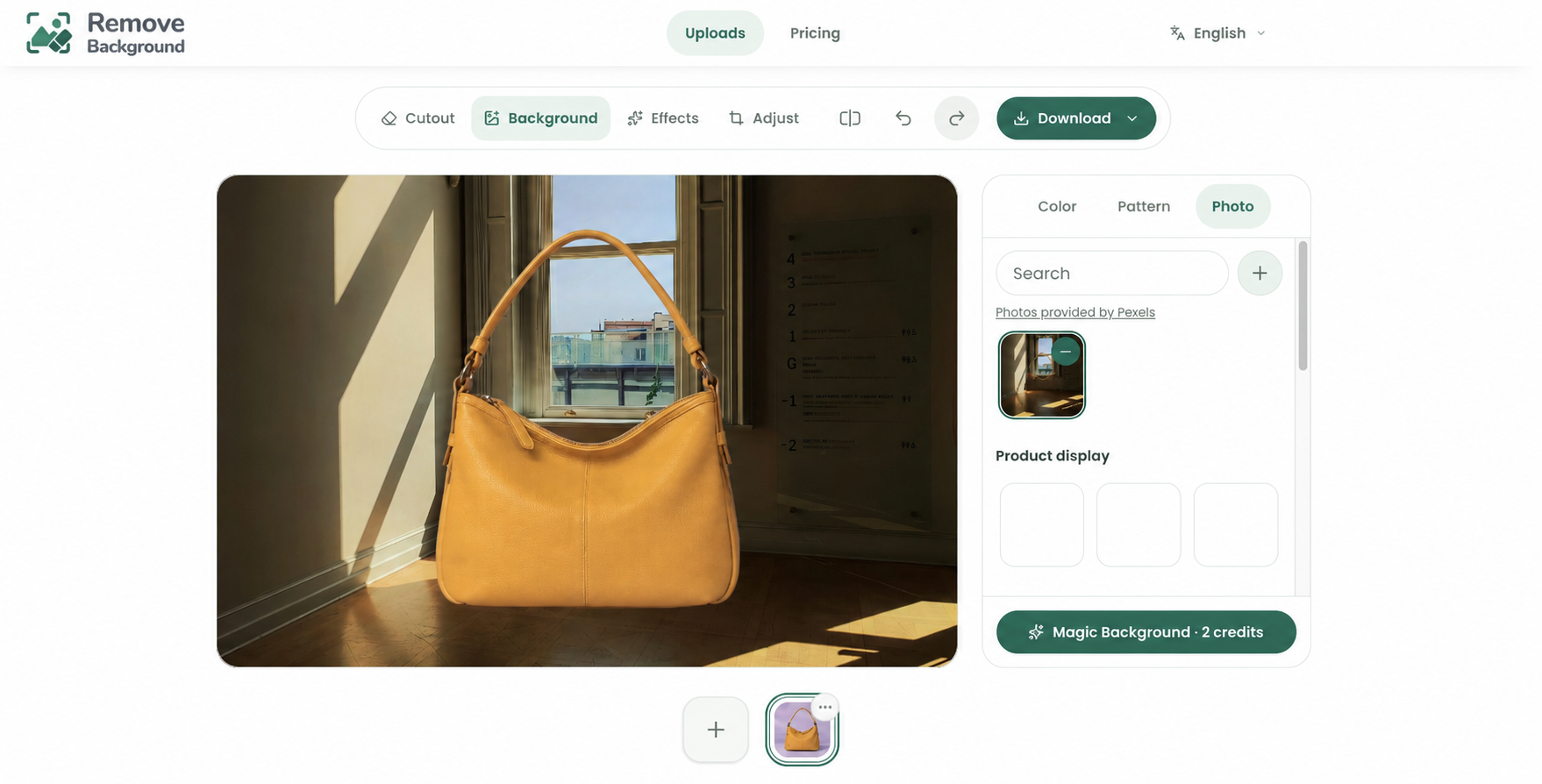
What happens with an uploaded photo?
Here the room photo was selected through the upload button shown above. Compare that exact preview with its Full AI render. The model can change fine details.
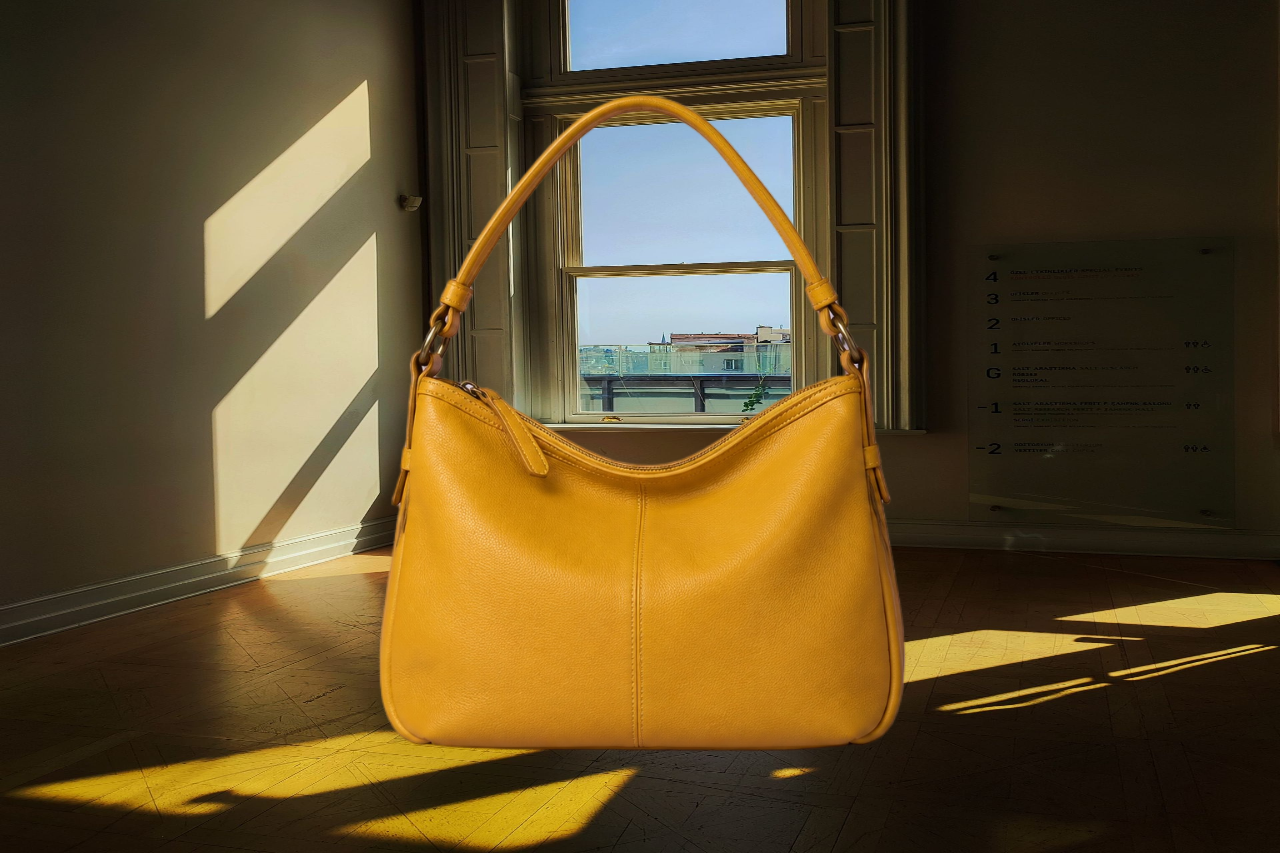
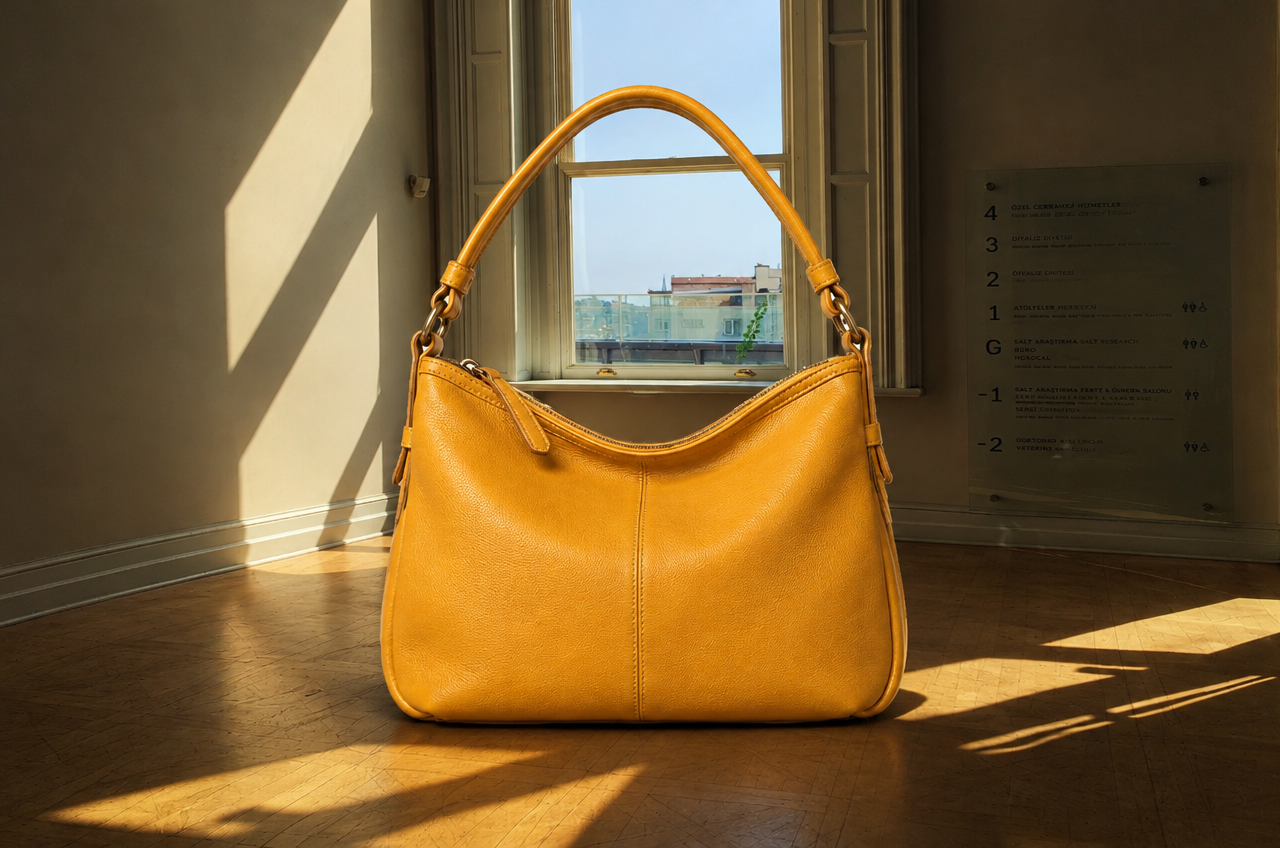
Background photo: Gizem Özkan / Pexels
4. Confirm and generate
Click Magic Background · 2 credits. The confirmation dialog names your selected background and shows the cost. Confirm to start. The button shows a starting state while the request is submitted; then the task continues in History.
5. Compare, save, and revisit
Open the completed task from History. The result page shows the saved background and two versions. Choose a version and Download; you can return to the editor without changing that result.
Full AI render
Shows the complete AI-generated image. Subject or background details may differ from your input; use the expand icon to inspect it closely.
Preserve original
Keeps the original subject pixels while using the generated surroundings. Choose this when exact product or portrait details matter.
The History icon sits beside the Magic Background button. You can change backgrounds and start another task while an earlier one processes. History keeps the tasks for the current source image in this browser; opening an old result does not change your current edit.
Good to know
- A successful generation costs 2 credits. Credits are reserved when processing starts and returned if generation fails. Downloading the result costs nothing extra.
- Download a completed result within 3 hours. After expiry, the result is removed; save a copy to your device first.
- The result is a PNG with a longest edge of up to 1280 pixels. It is separate from the ordinary cutout download.
The five interface screenshots show the actual editor before generation. Both before-and-after comparisons use the same sample cutout with a selected photo and a Magic Background model result. Your result may differ.